Tax export and Drake workbook
Build a year-end trial-balance workpaper with tax adjustments and export a Drake-formatted 1120S workbook for tax season handoff.
Tax Export turns a company's year-end books into a tax preparer's starting point. It builds a trial-balance workpaper for the tax year, lets you record tax adjustments and map each account to the right Drake line, and then exports a Drake-formatted Excel workbook you can hand off or import. Use it at tax season, once the year's bookkeeping is reconciled and closed, to move clean numbers into the return without retyping a trial balance.
Tax Export lives under Reports. Open Reports and select the Tax
Export card, or go straight to /reports/tax-export. This article covers the
tax export specifically; for the financial reports catalog, statement exports,
and the management statements packet, see Reports.
Tax Export currently produces a Drake 1120S (S-corporation) workbook. The entity type is fixed to 1120S today, so use this for S-corp company books.
When To Use It
Reach for Tax Export at year-end handoff, after the tax year is fully coded, reconciled, and reviewed. The workpaper reads posted ledger activity: balance sheet accounts as of the year-end date, and revenue and expense accounts as the tax year's activity. If the books are not yet closed for the year, finish that first — the export is a snapshot of the numbers as they stand.
The goal is a Drake-ready trial balance: every account with a balance mapped to a Drake line, tax adjustments recorded where book and tax differ, and the whole thing in balance before it leaves LedgerHQ.
Set The Tax Year And Read The Summary
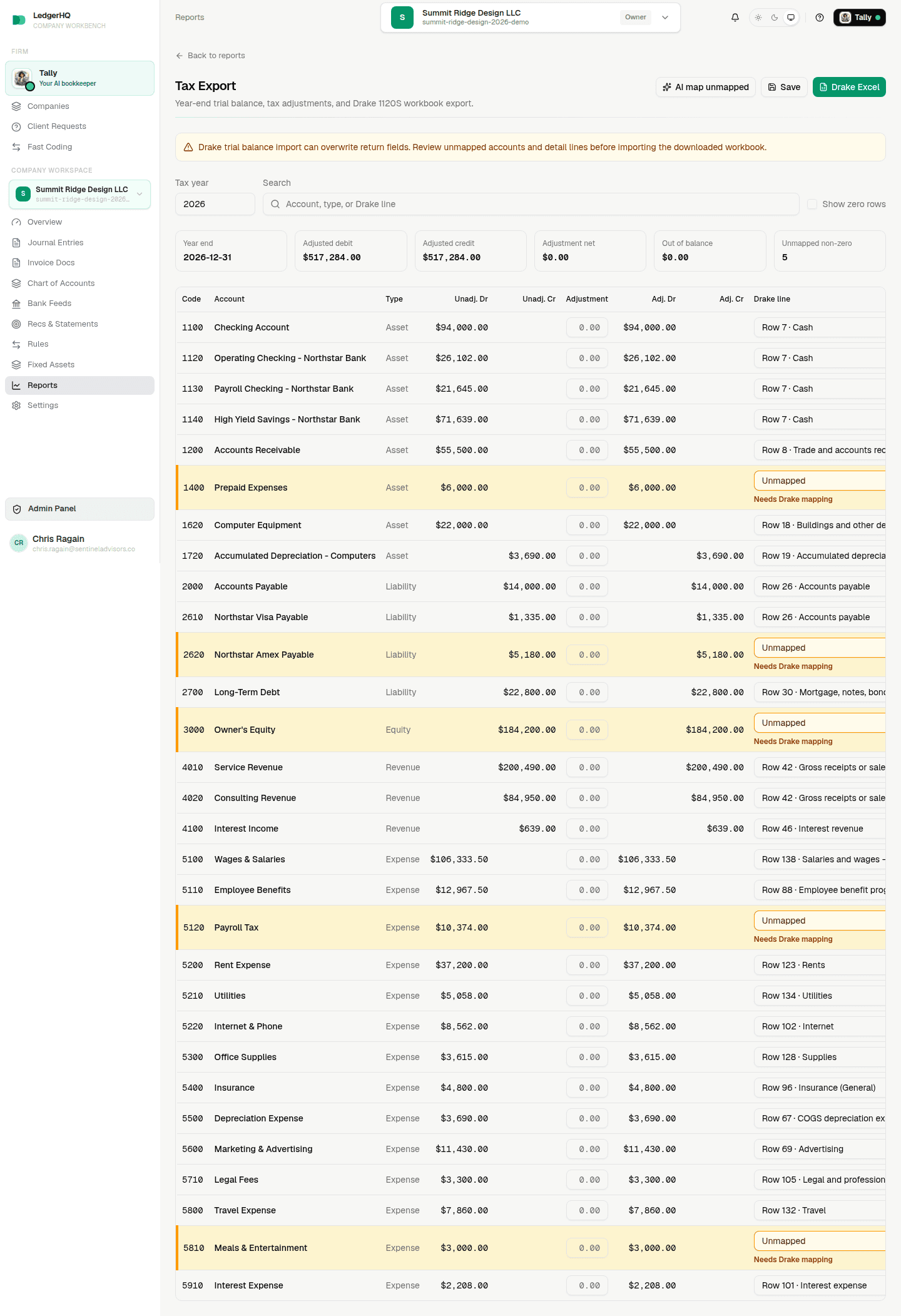
The Tax year control at the top selects which year the workpaper covers. LedgerHQ builds (or reopens) the workpaper for that year and shows a set of summary tiles: Year end, Adjusted debit, Adjusted credit, Adjustment net, Out of balance, and Unmapped non-zero.
Watch two tiles in particular. Out of balance must reach zero before you can export — an adjusted trial balance that does not foot cannot be exported. Unmapped non-zero counts accounts that carry a balance but are not yet assigned to a Drake line; every one of those needs attention before the workbook is complete.
Use the Search box (search by account, type, or Drake line) to find rows quickly, and the Show zero rows checkbox to include or hide accounts with no balance.
Record Tax Adjustments
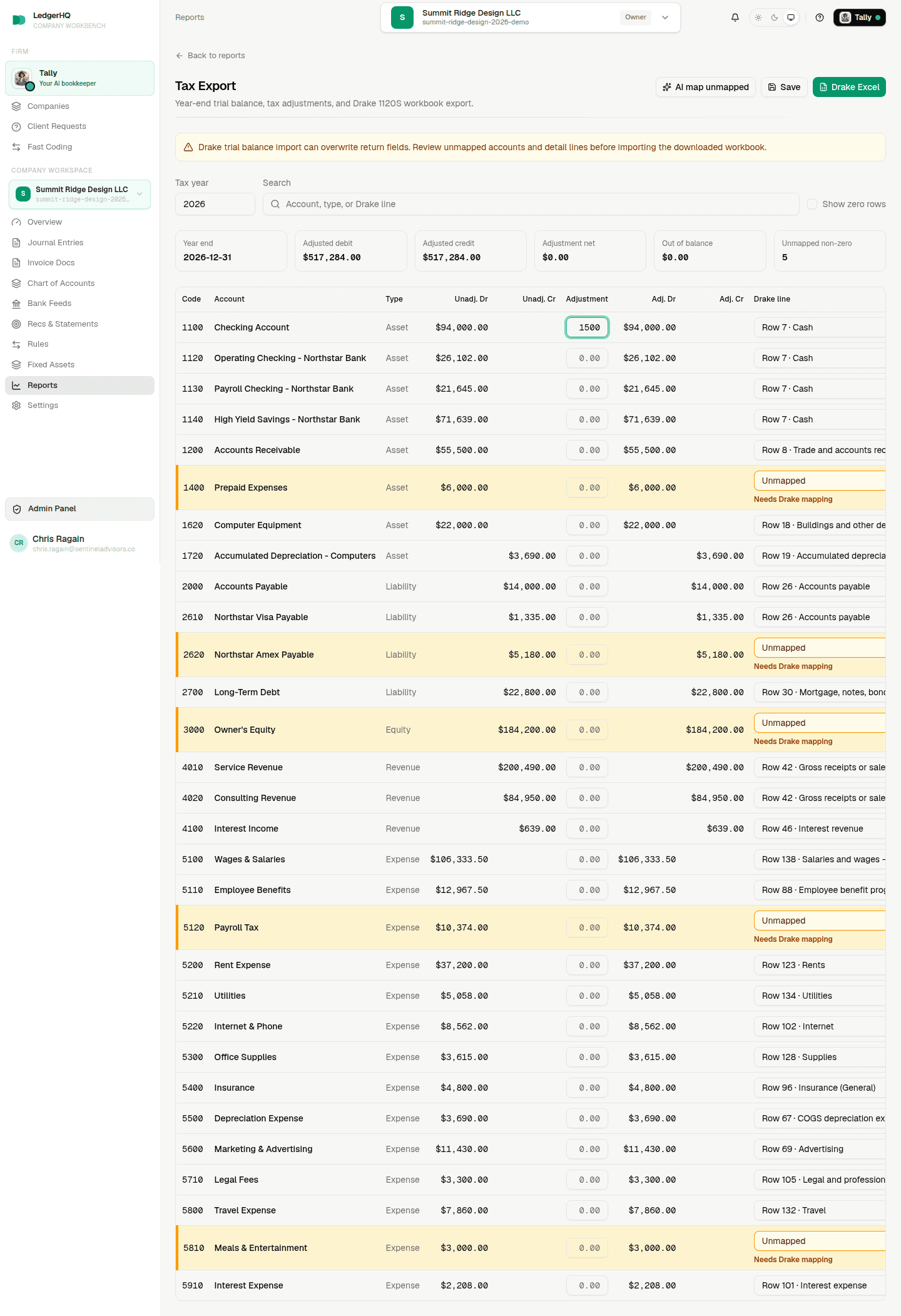
Each row of the workpaper shows the account Code, Account name, and Type, its unadjusted debit and credit (Unadj. Dr / Unadj. Cr), an editable Adjustment, the resulting adjusted balance (Adj. Dr / Adj. Cr), its Drake line, and a free-text Note.
Enter an adjustment on any account where the tax basis differs from the book balance, and use the note to explain why. The adjusted columns and the summary tiles recalculate as you go. Select Save to persist your adjustments and mappings; the export always reflects the saved state.
Map Accounts To Drake Lines
Every account with a balance must map to a Drake 1120S line. Each row has a Drake line dropdown offering Unmapped plus the Drake lines compatible with that account's type — asset accounts see asset lines, expense accounts see expense lines, and so on. LedgerHQ pre-fills obvious matches automatically; you confirm or correct the rest.
Rows that still need a line show Needs Drake mapping. If an account was renamed or retyped after it was mapped, LedgerHQ flags the row so you can review whether the existing Drake line still fits.
To speed up a large chart, select AI map unmapped. LedgerHQ researches the remaining unmapped non-zero accounts and proposes a Drake line for each, shown inline as an AI suggests Row N row with a confidence percentage and Accept or Dismiss buttons. A suggestion only becomes an active mapping when you Accept it, so you stay in control of every line that reaches the return.
The AI mapping helper is optional and assistive. If it is unavailable, every account can still be mapped by hand from the Drake line dropdown, and the export works exactly the same. Always review accepted suggestions — they are a starting point, not a final answer.
Export The Drake Workbook
When the trial balance is in balance and the accounts are mapped, select
Drake Excel to download the workbook. The export is a single Excel file
(.xlsx) formatted for Drake's S-corp trial-balance import, named for the tax
year. It contains the mapped trial balance with each account's Drake import
target, a net income line, totals, and supporting Drake detail sheets; accounts
that could not be mapped are listed separately so the sheet still foots.
Before it lets the file download, LedgerHQ enforces a few checks: the adjusted trial balance must balance, any remaining unmapped non-zero accounts must be confirmed, and the workpaper's net income must match the income statement for that year. If any check fails, fix the flagged issue and try again. A successful export marks the workpaper as exported.
Importing the workbook into Drake can overwrite return fields. Review the unmapped accounts and the Drake detail lines in the downloaded file before you import it into a return, and treat the import as a deliberate, reviewed step — not a blind load.
What To Review Before Handoff
Confirm the tax year and year-end date are right, that Out of balance reads zero, and that Unmapped non-zero is zero or every remaining account is an intentional exclusion. Spot-check a few high-value mappings and any AI-accepted lines, make sure each adjustment carries a note, and re-run the year's Income Statement in Reports so the net income you are handing off matches what the export expects. Then download the Drake workbook and pass it to the preparer.